
DOWNLOAD THE APP


Customer Services
Copyright © 2025 Desertcart Holdings Limited
DOWNLOAD THE APP


📡 Elevate your home network to pro-level speed and security — don’t get left buffering!
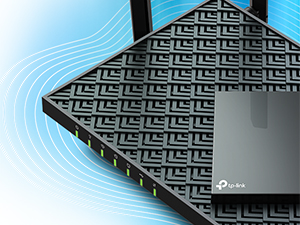
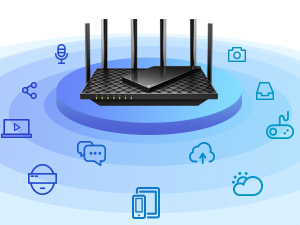
The TP-Link Archer AX73 is a cutting-edge WiFi 6 router delivering up to 5400 Mbps dual-band speeds, powered by 6 high-gain antennas and advanced beamforming for extensive home coverage. It supports MU-MIMO and OFDMA technologies to connect multiple devices seamlessly, perfect for 8K streaming, gaming, and smart home setups. Enhanced with TP-Link HomeShield security and a vented design for optimal cooling, this router ensures fast, reliable, and secure internet for modern households.






| ASIN | B08TH4D3QV |
| Antenna Location | Gaming |
| Antenna Type | Fixed |
| Best Sellers Rank | #3,689 in Electronics ( See Top 100 in Electronics ) #34 in Computer Routers |
| Brand | TP-Link |
| Built-In Media | Power Adapter, RJ45 Ethernet Cable, Wi-Fi Router Archer AX73 |
| Color | Black |
| Compatible Devices | Laptops, Desktops, Smartphones, Tablets, Game Consoles, Streaming Devices |
| Connectivity Technology | Ethernet, USB, Wi-Fi |
| Control Method | App |
| Controller Type | iOS |
| Coverage | Extensive Coverage |
| Customer Reviews | 4.4 out of 5 stars 8,907 Reviews |
| Data Transfer Rate | 5378 Megabits Per Second |
| Frequency | 5 |
| Frequency Band Class | Dual-Band |
| Has Internet Connectivity | Yes |
| Has Security Updates | Yes |
| Is Modem Compatible | Yes |
| Item Dimensions L x W x H | 10.73"L x 5.8"W x 1.94"H |
| Item Weight | 1.46 Pounds |
| LAN Port Bandwidth | 10/100/1000 Mbps |
| Manufacturer | TP-Link |
| Maximum Upstream Data Transfer Rate | 2500 Megabits Per Second |
| Model Name | Archer AX73 |
| Model Number | Archer AX73 |
| Number of Antennas | 6 |
| Number of Ports | 5 |
| Operating System | Proprietary operating system developed by TP-Link |
| Other Special Features of the Product | Beamforming, Parental Control, QoS, WPS |
| Router Firewall Security Level | High |
| Router Network Type | dual-band |
| Security Protocol | WPA2, WPA2-Enterprise, WPA3 |
| Special Feature | Beamforming, Parental Control, QoS, WPS |
| UPC | 840030702327 |
| Unit Count | 1.0 Count |
| Voltage | 100240 Volts |
| Warranty Description | 2 year manufacturer |
| Wireless Communication Standard | 802.11ac, 802.11ax, 802.11b, 802.11g, 802.11n |
| Wireless Compability | 802.11ac, 802.11ax, 802.11b, 802.11g, 802.11n |
D**N
Fast router, no issues after two months
I use this with my Hutton CODA56 modem. I have not had any issues with this router at all. My internet is 250mbps up and down, speed tests show me pushing 300, and when I game my ping is usually in the 40s. This is from my desktop pc using a WiFi PCIE adapter. Basically, the router is as fast as an Ethernet cable. The router has multiple antennas which surprisingly are not for looks - the router is in my basement and after initial setup, my smart tv upstairs was showing low signal. I adjusted one of the antennas to point at the living room and my tv. showed full bars. Router setup is easy, and the menu options when you’re logged in to set the name, etc are pretty intuitive. One note about setup is that there is an option to optimize your connectivity. Instead of having a separate 2.4 and 5ghz network like most routers, this router can just have one network to connect to and the router decides based on load, demand, etc which bandwidth to operate for each device, behind the scenes . We have a hatch sound machine for our kid that operates on WiFi (seriously, why does a sound machine need an app?) but you can only connect to a Hatch on a 2.4ghz WiFi network. I had to log in to the router and uncheck the optimize setting to create separate 2.4 and 5ghz networks so that I could connect to the sound machine and change whatever settings needed to. Not an issue or a knock gains the router, just something to be aware of. Really I don’t think about my router often, which in my opinion is a good thing. I have owned it almost two months now and it has been completely reliable.
T**L
Top tier 5ghz performance 👏
I was extremely impressed with the 5GHz performance on this router. It blew away my expectations, and compared to the BE600 WiFi 7 router, this AX72 Pro destroys it with a single band. Range and speeds were both better. I have it a floor above me, about 8.5 feet up. My PC downstairs was getting a rock-solid 400+ Mbps with low jitter. If you think you can live without the WiFi 7 promises, I suggest you try this, as I think this had much more time in the oven. Otherwise try looking for the dual router setups thay link via MLO, those might actually deliver true wifi7 performance.
P**G
Perfect router for most users
There are many routers claiming to be fast and support the max speed of the wifi 6 protocol. However, most routers fall short terribly. Some heat up like a toaster like AX3000 and some don't have the processing power i.e. the required number of CPUs to quickly process the packets by 20+ devices. Further, some are $300+ which kind of brings the affordability into play. This router however finds the right balance in all the features which I was looking to upgrade. I was looking in the range of about $100 and tried to AX3000. However, it heats up too fast and then starts to thermal throttle the speed and doesn't even stay connected with the clients like a laptop or mobile devices. I have tried a Netgear router from Costco AX4300 but fall short when around 20 devices are connected to it and don't support the mesh networking. Features which I wanted and like: Range: This device has a superb range by itself and covers my home pretty easily. I see I have a good wifi signal at all ends of my home and I live in a 2-floor apartment with the router placed upstairs. Mesh: I like to receive a good network in my backyard as well and so I have added a RE505X which costs another 80 bucks but saves money on my mobile data plan as I don't invest in an unlimited data plan. There is only 1 SSID that is broadcasted and it automatically switches based on where I am in the home. Heat: Some routers heat up and create a fire hazard and also have the probability of breaking down sooner than I like them to. This is not the case with this one and it stays relatively cooler and never experienced any slowing down of the network. I have touched it to check several times and it's good. Setup: The setup was really easy. The basic setup can be done in minutes and there is no RnD required. The tether app is pretty cool for basic setup. I also have requirements for static IP based on mac address and port forwarding. Both of them are easy to configure. They also have support for dynamic DNS so you can easily host your basic website in your home network. For this, I need static IP address reservation and port forwarding. Parental controls: This is a real plus that allows me to block youtube or any site whenever I need to get my kid away from the TV. Reboot schedule: I like to have a reboot schedule which is good this router has it and very easy to set up. LED lights: This router allows to turn off led lights and I like it that way once the setup is complete. Summary: I think its a router for average home with right balance of ease of use and price and features. Note: I have not been paid for this review and have bought the router with my own money. 2 Weeks Update: Going strong with over 20 devices connected, no disconnections reported by anyone in device. I have 3 heavy internet users at home. No heating issues, range is good. 4 Months Update: Working perfectly for 4 months. No issues. 2 year update Still works as new with no issues
A**S
Improved throughput and eliminated drops
This was a HUGE upgrade from our previous NETGEAR Nighthawk R7000. With smart devices in every room, plus cellphones, etc. we have around 20 devices connected to our wifi router. Despite this being well below our NETGEAR’s threshold, it still would drop connections intermittently. Live football would freeze multiple times during a game. I added a wifi extender with hopes that it would help with load balancing different regions of our home, it did not. So I shopped around and decided to get the TP-Link. Of course setup was super easy. I set the SSID and password to the same credentials as NETGEAR, so our home devices would hopefully connect automatically. This worked well for almost everything. Oddly enough I did have to forget and reconnect with my cellphone, but that was no big deal. Everything else (doorbell, door lock, Alexa speakers, TVs, PCs, etc etc) connected automatically. The one downfall to this device is its content filtering is inferior to our NETGEAR nighthawk. The netgear nighthawk comes with a program called “circle” that allows you to view web browsing (DNS queries) and control wifi access for those devices. It’s a very easy interface that gives you extra visibility and control over your network. Unfortunately TP-Link offers no sort of Content access monitoring or filtering. Unfortunately I’ve yet to find a free, realtime DNS server to add to my router settings that’ll allow me to have the same capabilities as NETGEAR’s circle. That being said I’m still EXTREMELY happy with this device. The coverage is fantastic and I’m frequently getting peak bandwidth.
A**X
Excellent for the price
I bought this router because the one that my internet provider gave me was junk (company name rhymes with horizon). The setup was very straightforward, it maybe took 15 minutes. If you already have a working internet setup (a modem with a functioning WAN port), all you really have to do is swap the router out and set it up through their app. For my family of 3, the speed is fast and consistent. I have yet to experience a random disconnection. It works well with my gaming setup with acceptable download speeds and a stable latency (a wired connection is ideal).
M**.
Perfect for everyday needs
This router has been a great upgrade for our home network. Setup was straightforward and the connection has been very stable since installing it. WiFi speeds are fast throughout the house, and it handles multiple devices streaming, working, and gaming at the same time without any issues. Coverage has been solid with no major dead spots, and the performance has been consistent day to day. I like that it offers modern WiFi 6 features without being overly complicated to manage. Overall, it’s a reliable, well-performing router that works great for typical household use and daily internet needs.
G**N
Stopped working after two months
- FIRST OF ALL, ABOUT MY RATING OF THE PRODUCT: Had the unit I received not been defective, I would have rated this 5 stars (see the original review below). But after so much trouble it has caused me, I couldn't rate it higher than one star. It does not mean that I disagree with others who have given this product a higher rating. Every user experience is just a data point. I contribute my data point truthfully. If the replacement router remains reliable for at least a year or two, I'll adjust the ratings accordingly. That's a bit of a long time to test, I know. I normally wouldn't wait that long to give credit to a product, but after having a defective product, the burden of proof has shifted. DEFECTIVE PRODUCT The product worked well initially but became completely unusable after two months. Devices could not stay connected. They get disconnected frequently, sometimes even within minutes of reconnection. When disconnected, devices could not auto-reconnect, and manual reconnection became unpredictable. It happened all of a sudden with all devices. Restarting and even resetting could not fix the problem. I am very experienced with routers. I know the problem had nothing to do with configurations and devices. The router broke on its own. I didn't do anything to the router before it broke. Not even a reconfiguration. Even if some reconfiguration caused it, factory resetting would have solved the problem. But it did not. I don't think it's the firmware problem, either. I updated it to the latest firmware immediately when I got the router. The router worked for two months with the latest firmware before all this happened. I have used many routers in the past. There have been other problems, but I have never had a router that suddenly stopped working, never even after years of use. But the TP-Link did it within two months—just long enough to pass the Amazon return period. Too bad because it worked well when it did. REPLACEMENT I received a replacement, which worked immediately once set up, proving that the previous unit was indeed defective. But I will have to wait to see if the replacement unit can remain stable. After all, the previous unit worked perfectly for two months before it suddenly broke. The replacement is not a new unit but a "refurbished unit". That doesn't give you a lot of confidence. Many of these routers are returned because they have become unstable, not because they simply died. I have serious doubts that the refurbishing process can truly diagnose all of the stability issues. They will be able to diagnose and fix apparent problems, but unlikely all of them, especially stability problems. As a result, I just don't feel very good about the whole thing. I hope I got a good sample, but to be honest, I don't have much confidence. If this one also has problems, I'm not going to get another replacement. I will certainly switch to a different router. THE REPLACEMENT PROCESS The replacement process was at least 10 times harder than Amazon's return. This is an objective statement because I measure the processes by the time and effort required to get replacement authorization and shipped. With Amazon, a return would take just a few minutes to get both authorization and a free shipping label. With TP-Link, the process took me at least an hour (though it felt much longer than that). First, I had to argue with customer service to convince them that the device needed to be replaced. Then, I had to open an account with them, go through a complicated process to register the product, initiate a replacement process, monitor individual steps, and so on. You will not be able to do it unless you are determined and patient enough to read many instructions and navigate through many things to decide what to do and what not to do. In the end, I also had to pay for shipping, which was almost $20, with the slowest option. And they don't ship the replacement until they receive the old one. Fortunately, I had another router that I could use temporarily. But what if I didn't? To TP-Link's credit, the replacement was shipped only two days after they received the defective router. Also, because it was shipped from a warehouse very close to me, it arrived after an additional two days. So, the total turnaround time was less than one week, much shorter than I had expected. Also, to be fair, I don't think TP-Link's product return process is particularly bad compared to other manufacturers. Returning a product is inherently difficult for both the manufacturer and the consumer. To prevent consumer fraud, the manufacturer has to have some degree of verification and prevention. Amazon made its return super simple because it forces manufacturers to accept returns with essentially no condition imposed and to offer free two-way shipping. No manufacturer can afford this kind of product return service for a long time. Amazon also has extremely efficient return address label printing and drop-off services, taking advantage of its vast platform and network, which individual manufacturers don't have. For the manufacturers, the only way to avoid this problem is to make the product more reliable. The following is the ORIGINAL REVIEW (which was written before the problems described above, and you can see it was positive): THE ORIGINAL REVIEW I installed this only a few days ago, so it is too early to judge its stability. But I can comment on some other things. This router replaced a five-year-old NETGEAR Nighthawk Pro Gaming XR500 Wi-Fi router and instantly solved all the problems we had with the old router. Since we had the Netgear, we always experienced random delays in receiving mobile text messages under the Wi-Fi setting. Phone calls through Wi-Fi calling were also unreliable. But we couldn't determine whether it was the router or the mobile carrier and hence did not consider changing the router until recently. Upon installing the TP-Link AX5400, it became clear that the old router was causing problems with Wi-Fi text messaging and calling. So far, everything seems to work perfectly with this new router. The signal strength and coverage also seem better, although we had no issues with the Netgear either. It took just several minutes to set up the new router. The only part that felt "difficult" was choosing a new admin password that felt secure. By the way, the price of this new router is less than half of what we paid for the Netgear five years ago.
M**S
An excellent device
The TP-Link AX5400 is a WiFi 6 router with dual band and long range wireless capabilities. Also known as the Archer AX73, the WiFi 6 technology allows this product to achieve speeds up to 5400 Mbps as a theoretical maximum. Even though actual speeds will probably be lower than that, it will still be fast enough to perform bandwidth demanding tasks such as large file transfers over the network or Ultra High Definition streaming on your local home network. Installation is super easy, it’s basically plug and play. You connect the router to your internet modem, and then connect your devices via the WiFi networks. The A5400 will come with default wireless settings, including a predefined network name and password, for easy initial setup. It is strongly recommended to change these settings to your own, for security reasons. Management can be done either via the smartphone app or (very happy about this one) the web interface. More about that later. Aesthetically, you will notice that this router has a rather interesting rectangular design, and it is equipped with 6 (!!!) antennas. Yes, you read that right: 6 antennas. TP-Link claims that this supports large wifi coverage and good signal strength to all devices with their beamforming and 4T4R technologies. Even though I have no practical way of measuring the performance of these technologies, I can attest to the fact that the AX5400’s coverage is excellent and I didn’t notice any dead spots at home (including the devices located outside my home, such as wifi cameras and doorbells). In case you do experience dead spots, you can add an extra TP-Link mesh device compatible with the AX5400 to solve the issue. I talk more about mesh networking below. One of the major features of the AX5400 is mesh networking. Mesh means that all your routers connect with each other, forming a mesh of coverage rather than having one router that acts as a single point of connection. Your wireless device will always connect automatically to the mesh router that provides the strongest signal. This is called Roaming. Much like in telecom/mobile networks, your Wi-Fi devices might change positions and move around your house. This means that the wireless signal between your device and the router gets weaker with distance. With mesh routers your device will automatically connect to a different router unit that offers a stronger signal, without interrupting the running service and streams. This not only increases the coverage vastly, but also offers seamless handovers and transitions of Wi-Fi services as you change your position in your house. In other words, you get Wi-Fi Roaming capabilities that will vastly improve the reliability of your wireless connection. That, of course, means that you need another TP-Link mesh capable device to achieve this functionality. TP-Link provides a list of mesh devices compatible with the AX5400 on their website. So far I have no complains regarding the AX5400’s performance. The Wi-Fi is very quick and outperforms my internet connection. I haven’t noticed any issues with latency either. One remark I want to make here is that, even though older WiFi cards will still be able to connect and operate with the AX5400, you will need a Wi-Fi 6 compatible wireless card to make the most out of the mesh system. Making the most out of it doesn’t mean that you will experience speeds close to 5.4 Gbps. These speeds are a theoretical maximum, they are achieved in the lab and they are impossible to see in the average home network setup. You will see, though, very high speeds depending on the quality of your wireless card (in my tests, I used the TP-Link WiFi 6 AX3000 PCIe WiFi Card), the distance from the router and the obstacles that separate you from it. Bottom line: it’ll be fast, but be realistic with your expectations. But probably one of the things I’m most happy about this router is the availability of a web interface for management. Being the owner/user of the otherwise great TP-Link Deco system, one of my main complaints was the lack of a web interface for network configuration. As a power user, I find it hard to configure my network equipment via the small screen of a smartphone. You can access the web interface by typing the router’s management IP (you can find it listed as Gateway on your computer’s network settings) in your browser. You’ll have to first set up a local password (or create an account with TP-Link) before accessing the router configuration. Once you log in, the first screen you’ll see is the home screen, or a summary screen if you like. You can see the internet status, the router status and some shortcut button to common functions, your mesh devices (if you have any) and the connected client devices. This last bit is quite interesting, since you’ll be able to see the connected devices, their real time speed (up/down), the interface they’re connected to (ethernet, 2.4G or 5G), their “negotiated” max bandwidth, how long they’ve been connected to the router and, finally, a “block” button to deny the device access to the network. Below, I’m going through some of the functions that I find interesting, but I will omit the ones that are so common you can find them virtually in every router out there. On the Wireless screen you’ll find your WiFi settings. You can turn on or off OFDMA, TWT, Smart Connect and, of course, the Wireless radio itself. OFDMA (simultaneous transmission to different devices within the same transmission window) will significantly increase the traffic speed with compatible devices (your device must support OFDMA), TWT will help increase your device’s battery life by maintaining the connection with the router and allowing the device to go to sleep (aka not forcing the device to send keep alive messages to the router too frequently), while Smart Connect optimized the connectivity of the router’s radio bands with the client devices. TP-Link offers a security platform with the AX5400, similar to what they offer with the rest of their flagship devices, HomeShield. The user will get some basic functionality out of the box, and additional sophisticated features and analytics are available with a subscription service. The last screen on the web interface is the Advanced screen, where all the advanced options are located. Power users will definitely appreciate some of these. The first thing that caught my eye was Lan —> Link Aggregation. You can aggregate (combine) up to two Ethernet ports into one (logical) network port, aggregating their bandwidth as well. Of course, you’ll need to aggregate ports on the other end of the connection as well, but that is the other side of the problem. Pretty cool. The router also supports direct DynDNS logins, for those of you who still use a DynDNS client on your computer. Another cool section is Routing. You can use your own static routes defined in the router’s config if you need to direct specific traffic to specific destinations. Use this only if you know what you’re doing, otherwise a bad routing config will probably block your access and traffic. The router comes with a USB port, which is nothing unusual. What is very cool, though, is the fact that the USB port supports (except for mass storage devices) Apple’s Time Machine. Just connect a storage device to the AX5400’s USB port, enable Time Machine in settings, and voila! No need for one of those old Apple AirPort Extreme routers anymore. NAT is, of course, present in this device as well, for your port forwarding needs. Security features include a Firewall, ACLs and MAC spoofing protection (by binding IPs to specific MACs). You have your standard VPN server built in, supporting both OpenVPN and PPTP, IPv6 support for you dual-stackers out there and a bunch of router Admin features (firmware update, backup, remote management, system logs etc.). Last but not least, you can switch the mode of the device between a Router (the device will route traffic and provide routing services) and an Access Point (the device will become a wireless gateway for clients, but you will need to connect it to a router for routing services - this is used mostly to expand the WiFi network). Overall the TP-Link AX5400 WiFi 6 router is a great home routing device and a strong contender in this segment of products. I’m very happy with it for the time I’ve been using it, and I definitely recommend it.
Trustpilot
3 weeks ago
5 days ago