


๐จ Unlock your digital canvas with precision and speed โ create like a pro, without the premium price!
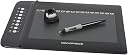
The Monoprice MP1060-HA60 is a professional-grade graphic drawing tablet featuring a generous 10" x 6.25" workspace with a 16:10 aspect ratio, 1024 levels of pressure sensitivity, and a rapid 200 reports per second rate. Equipped with 8 programmable hotkeys plus 16 preset function keys, it offers customizable efficiency for creative professionals. Compatible across Windows, Mac, and Linux platforms, this tablet delivers high-resolution 4000 LPI accuracy, making it an affordable yet powerful tool for digital artists seeking precision and responsiveness.
| ASIN | B004C4ZT0G |
| Active Surface Area | 10x6.25 |
| Additional Features | High Pressure Sensitivity, Customizable Hot Keys |
| Brand | Monoprice |
| Built-In Media | Stylus |
| Color | Black |
| Compatible Devices | Tablet |
| Connectivity Technology | USB |
| Customer Reviews | 3.9 out of 5 stars 613 Reviews |
| Item Weight | 1.62 Pounds |
| Manufacturer | Monoprice |
| Mfr Part Number | 106814 |
| Model Number | 106814 |
| Native Resolution | 1920x1080 |
| Operating System | Windows XP and Vista |
| Pressure Sensitivity | 1024 Levels |
| Screen Size | 10 Inches |
| Special Feature | High Pressure Sensitivity, Customizable Hot Keys |
| Specific Uses For Product | personal |
| Target Audience | Student |
| UPC | 844660068143 710348855155 818201034690 710348852024 |
Y**E
A wonderful Tablet
Now first off, I'm not the most versed in up to date Artist Tablet Technology. When I first heard the concept of tablets I was ecstatic about the idea but naive to the immense library of graphic design tools on the market. So I began researching about for affordable, quality graphic design instruments and I came across This MonoPrice Tablet. Right off the bat I heard plenty of good reviews which were rather necessary considering this is an Independent Company and such are not always the most reliable. However, Allow me to say that I have not regretted purchasing this tablet in the slightest from the day I installed the sensitivity program to this day. First off, it works wonderfully. It's decently flat and light making it easy to move or reposition. The size of the tablet spans the entire screen of my laptop which is a life saver because I understand smaller tablets are forced to work like a mouse with the scrolling levels at 1. The Pen that came with the tablet feels comfortable and smooth; granted the buttons on the top near the index and pointer finger positions are a little bit awkward considering I don't need to use them often, but their functions are really neat considering it basically turns the pen into a mouse. That in itself is pretty cool because I can use the tablet to write in things I want to search on the web using a writers recognition program (Installed with the disk that comes with it) instead of typing. Granted, I still type anyways, simply because it's still much faster and more accurate but it's a nifty little feature. The sensitivity program I mentioned earlier works wonders with my Photo Shop Elements program as the size of the line increase fluently with each stroke of the pen as you push down harder. Also, a cute little bonus, the Tablet comes with a plethora of hot key's for easy command. Some are located on the tablet's surface itself which one can easy activate with a tap of the pen. Others are on the side of the tablet in the form of buttons. I will admit, I hardly use most of them because I've already adapted to the laptop hot keys commands already, but for those who aren't versed in the ctrl+ commands, this will make fixing those little hiccups in your artwork much easier. All in all, I understand that this isn't the most Advanced tablet in the world considering you can't draw directly on the screen nor have your line's automatically perfected with each stroke. However, it holds it's own splendidly against the other tablets and It comes at a remarkably low price for it's quality. I would highly suggest this tablet to anyone who'd like to draw on their computer because It's a wonderful artistry tool and very very fun ^^.
K**R
good first tablet
After having this tablet for about two years I can safely say that it's a good large first tablet for someone that doesn't want to spend a lot. Setup is easy, BUT if you have wacom tablet drivers on your computer you have to uninstall them first. Wacom's drivers interfere with Monoprice's drivers and make the tablet unusable until you uninstall all of Wacom's drivers. Also driver updates are a little difficult to find on Monoprice's website. The hardware is more delicate than I had anticipated, in that I dropped the pen while stretching in my chair (it fell about five feet onto carpet) and it killed the pen entirely. Also the usb cable doesn't disconnect from the tablet, which I thought would wear out before anything else, but it outlasted the pen atleast. Otherwise, a functional tablet. Would be a great first tablet for someone to start out with, but expect to replace it in a couple of years for one reason or another.
D**Y
Works
To introduce, I left a job where I had a Wacom Cintiq (the tablet that is built into a monitor) and had tried using a mouse for certain hand-based illustrations but obviously that was terrible. Once you get used to hand-based input, mouse-based input can seem pretty Neanderthal. I looked at various Wacom tablets and the reasonably priced ones (under $500) had a usable area of only a few inches. That seemed kind of dumb imho. So I looked at alternative tablets and stumbled onto this one. At $50, it seemed worth the risk, and the reviews were good. After having it for a while now, I have to say that this is a phenomenal device - you move your hand, you make very controlled lines on the screen. What could be better? It does what it's supposed to. A few pluses and minuses: -The Programmable Function Buttons Plus: The programmable function buttons are nice. There is also a model without them for the same price, and I debated on getting that one. Usually in Photoshop I use the keyboard, but with the function buttons, I can take the tablet away from the computer. Minus: The buttons have written designations on them, but of course as soon as you reprogram them, the writing is useless and potentially confusing. It would have been great if they had put a removable plastic sheet over that you could peel back, write the new function, and re-place. -Eraser Minus: This tablet does not have an eraser (ie. - you flip the pen around to erase). You have to choose the erase button (as you would with a mouse) to erase. Plus: The programmable buttons can help you toggle between pen and eraser -Stylus Plus: The stylus has a good weight and feels about right. They also give you replaceable nibs Minus: The pressure sensitivity was pretty extreme by my standards. I can see why they give you replaceable nibs if you have to press that hard. I turned the pressure sensitivity off and vary line weight visually so it's not a problem for me, and now I don't have to press. In general, the tablet works well. If you want to spend the crazy money that Wacom wants, knock yourself out, but personally I'll stick with the Monoprice.
D**D
Upgrade from the Bamboo for sure, reconsider if you are bad at computers.
I had an Intuos 1 until I upgraded to Windows 7. I figured after 10 years it was time for an upgrade, so I got a Bamboo Create knowing that Wacom had all the best products and that no one else is good at making tablets. The Bamboo was okay, but after using a brush and inkwell to ink it felt like the settings were off or I was doing something wrong. I decided to give the Monoprice a shot. Worst case I could return it, best case I could sell the old tablet. Worst worst case I was out $50, which is a quarter of what I spent on the Bamboo or what I would have spent to get an Intuos with a much smaller usable area. The drivers are hell to install. First thing is to run a search for how to install the drivers, then decide whether to use the ones on the UC Logic site or use the CD that came with the tablet. Then you follow the directions that the first site gave you. When you fail, you try again, then you try one more time. Then you try another site and then you try to remember which order everything came in and really where did you screw that one up and do I really have to hit F8 everytime I boot up the computer (no) and then you pray to God and then you pray to Satan and then you kick the computer a few times and then suddenly it works but only in Manga Studio but oh well close enough. Then it starts running with everything else why...it's working I don't even care anymore. Oh. Windows wants to update OH GOD NO OH GOD PLEASE NO I HAVE TO START OVER. Please do not buy this tablet for your grandmother. Once it's running, it's a huge upgrade over any of the Bamboo models. I don't have enough experience with the newer Intuos models to compare, but I've heard it holds its own pretty well. For the first time since I tried doing stuff digitally, it finally felt like I was drawing properly. I had some concern about the weight of the battery making the pen awkward to hold, but it feels like a pen. I don't really notice it. It does seem to be a bit flimsy on the inside though. I don't quite know what to say about the tablet itself other than that drawing feels natural aside from having to look up at my monitor. It's big too- I don't need any more drawing space and a lot of people work smaller fairly comfortably. I guess the best way to sum it up is that I forget that I'm using a tablet once I start working. Wacom is the only name in the tablet market, but the technology hasn't changed much in the past 10 years while the price point has stayed the same. At the same time their Bamboo line is...I don't want to say terrible, but I'm irritated that I spent $200 on a tablet only to find that a $50 one works much better. There hasn't been a huge amount of innovation on their part and there wasn't much reason for them to since for a long time they were the only company that was good at making tablets. For someone who isn't good with computers or gets frustrated easily, depending on their purpose I'd still have to recommend a Wacom. Technically they aren't plug and play, but they pretty much are and the animations that run while the drivers are being installed are really pretty and then you don't have think about drivers ever again. For someone who just wants to scrapbook a $50 Bamboo is great. For a graphic designer who doesn't want the adventure of running this tablet, an Intuos is excellent. If you don't mind dealing with installation though, the Monoprice works better than the Bamboo models and is cheaper than most of them. I have some concern about customer service, but in a worst case scenario it's cheap enough that replacing it isn't a big deal. I'd give this five stars, but getting started isn't particularly user friendly. I'll still recommend it over the Intuos or Bamboo though. A lot of the 1 star reviews are people who never got the drivers working properly and their tablets were probably fine. Just keep bashing your head against the keyboard until it starts working right, I think it took me over an hour the first time to get it working right. I do love it though. If someone handed me a Cintiq I'd stop using the Monoprice, but really that's about it.
B**R
Looking for a first/cheap drawing tablet? This is a good choice.
Bear in mind that this is the first graphics tablet I've used. However, I bought it based on a glowing review on frenden.com, which compares it to other tablets like the ones from the giant in this field, Wacom, and concludes that it performs as well or better but at a fraction of the price. Since I haven't used other tablets, I can't speak to this, but using a pressure sensitive drawing tool is definitely awesome, and I don't think I can go back. It's fast and accurate, with no perceptible lag and it doesn't miss any details on fast strokes. I've used it daily for a couple months now and haven't had to change the pen battery. I never really use the shortcut buttons, and I unmapped the "close window" button because I hit it more than once by accident, which was very irritating, fortunately, the driver control panel in the supplied software makes this very easy to do. In fact, most of the features of the tablet are quite configurable. (remember to set it up to match the aspect ratio of your screen, or you'll end up with some really subtle problems with angles) There's no pressure sensitivity curve editor, but good drawing software will have it's own anyway. The only technical issue I've had with it is the pressure sensor in the pen sometimes reports pressure even when the pen is completely off of the surface. This seems to be a mechanical issue though, as it is easily resolved by twiddling the tip a bit and trying again. This happened more frequently when I first got the device, but hasn't occurred for a long time now, so I think it may have just needed some breaking in. Despite having a minor complaint or two, I've opted to give this 5/5 stars, because the quality/price ratio is so high. This is something that big brands like Wacom would sell you for four times the price. It is worth it. However, it is not the latest of it's kind. Monoprice has produced several newer tablets like it with incremental tech improvements. If you care about RPS or levels of pressure sensitivity, consider looking for their newer offerings.
D**R
Watch out for malware!
I purchased this tablet to work with DrawPlus X6. DrawPlus is my favorite graphics program & it works flawlessly on my machine. I installed the drivers for the tablet from the included CD exactly as instructed and the tablet appeared to work fine, but every time I tried to use it in DrawPlus it crashed the program. Crashes like this are often due to outdated drivers, so I followed the usual procedure and located the latest drivers for the tablet online (the tablet is actually a rebranded UC-Logic tablet) and attempted to install them. Norton Antivirus immediately reported suspected malware in the zip file and removed one of the files from my machine. However, Norton must have been a step behind the malware because all the entries in my start menu have been wiped out. From my subsequent Web searches, this appears to be a common thing for malware to do, and there are lots of free programs out there that promise to repair the damage. But somehow I find myself reluctant to download software that promises to repair the damage done by other software I downloaded. Needless to say, I returned the tablet to Amazon and want nothing more to do with it. As to the physical product itself, it looked and felt like what it is -- a remarkably inexpensive tablet with a lot of functionality. Yes, it felt a bit cheap, but it *was* cheap, so no complaints there. I certainly would have kept it and used it if it had worked. My experience may have been an isolated incident and others may be fine with the downloaded drivers. But be aware that you may be risking the health of your machine by doing so. Now, what to do about that start menu without placing my system at *further* risk...
M**N
Drawing tablet with 8 hot keys
Review from User: This Monoprice tablet is the first graphic tablet I've ever owned. For a long time I was checking out the Wacom, and honestly, the only things about those tablets that had me interested was the fact that the pen is battery free and the whole `touch' feature. But frankly, regardless of those two things, for a tablet of around the same size, Wacom just hurts your wallet too much. I mean, it's like $170 for a Wacom Fun Tablet. The Monoprice may not have the touch or the battery-free pen, but for all the money you save on it (you save over $100), you can get by without the touch (because the pen easily replaces the mouse, eliminating the need for touch) and you can buy plenty of AAA batteries, or even buy useful software that you might want (like Photoshop or Adobe or whatever). They even send you a software suite to go along with the tablet. There are five programs in all: - Annotation for Word - which allows you to mark up documents like you would any document by hand. I find this very handy, especially since I do a lot of writing and editing straight on the computer. - PenCommander - Helps you run any program or menu by simply drawing on the tablet, for example, when you draw an `e' it opens Internet Explorer. Just like a shortcut. - PenSigner - Helps you put small drawings or signatures into documents. - PenMail - Use it to send a handwritten email - however, the file is saved as a jpeg. - PenNotice - Capture screenshots and make annotations. The other features that the tablet comes with include the 8 Hotkeys on the left side of the tablet, things like Copy, Paste, Cut, Zoom In, Zoom Out, etc. On the active drawing area, are 16 hot cells, which you tap with the pen to make it work. You can program these to whatever you want. The screen is a very large area, actually, much larger than I needed, I realized, once I got the thing in my hands. But the good thing about it is, while it looks like it is built for a wide-screen monitor, you can actually set it to work for a 3:4 ratio monitor, or even set it to work with two monitors at once. You can also test the pressure sensitivity. There are a couple of things I need to mention about this tablet, though. First of all, the program suite doesn't work with Windows Vista (I have Windows XP). Secondly, it needs a USB port, but the cord is a little bit short, so I suggest using a port on the front of your computer tower or getting an extension cord. Another thing is that the pen seems quite fragile when you put the battery in. You have to carefully peel back the rubber grip and the battery sits in a thin piece of metal without anything to encase it. So I just had to be a bit careful when doing that. However, once you get the battery in there, it's a good pen. The pen also has three buttons--one in the tip (by the way you get three replacement tips inside the box, and it doesn't seem to be getting worn down too fast) and another two in a long, thin black button on the side of the pen. It looks like one button, but it's actually two, one on each end. You can set all these buttons to your preferences. You also get a pen stand, which you also use to replace the pen tip once you wear it down. The battery seems to have a nice long life. It doesn't run out in two days or anything like that. I hope I went over all the important features and aspects of the tablet. The description for the product doesn't really give you much to go on. Without a doubt, excellent value for your money.
M**R
No good.
I am familiar with drawing tablets, and I have owned plenty in my past. I have just moved to America for 10 months, and I figured I should buy myself a less expensive one. After a little searching on Amazon, I came over this drawing tablet made by Monoprice, a company I don`t have a lot of experience with. The value of the drawing tablet was excellent, so I decided to buy it. The package arrived at the post office, and I was excited, as I always am when I buy something new. I went home and opened the box, and I was pleased with the size of the tablet. It was after this I started to encounter problems. The first problem I noticed was that the instructions are not made specifically for this drawing tablet. This is not a mayor problem, but I though they should have taken the time to make instructions for this drawing tablet specifically. The second thing I noticed was the poor quality of the pen. After I opened it and put the battery inside, I had to use a lot of twisting and force to get it back into place. After this I plugged my drawing tablet into my Macbook Retina 13'', as instructed by the manual. Then I was going to install the driver. The driver comes on a CD, and if you don`t know, the Retina version of Macbooks don`t come with a CD drive. I did not really care about that, because I am used to go online to find my drivers. I went to Monoprice's website and after some searching I found the drivers page. What I discovered was that it was a real pain to find the correct driver. They have not labeled the drivers properly, and I had to download many drivers before I found one that looked like it would work. I tried the buttons that are included on the drawing tablet, which by the way can be really useful, and they worked properly! Then I tried to use my drawing tablet with the pen. It did not work. After a lot of frustration I found the settings for the drawing tablet, and tried pretty much everything. Still no response from the pen. The buttons still worked, which apparently is a sign that the driver is installed correctly. I am still trying to figure out what the problem is, and that is why I gave it 2 stars. I would not recommend you to buy this product! You should much rather buy a Wacom or another well known brand, even though it might be more expensive. ------------------------------ Value: Might be good if you can get it to work. Quality: A mixture between good and bad. The drawing tablet itself it of quite good quality, but the pen is not. Customer Support / Website: It is way to hard to find the correct driver for this drawing tablet online. Recommendation: I do not recommend this product.
L**Y
Amazing value for money
This tablet is large enough for comfortable drawing, and is mac compatible. (I had to buy an external CD drive for my macbook air, but the installation was simple and I don't need to have the disc constantly connected as I'd feared). The surface does show scratch marks after only a few uses, but these don't seem to affect the tablet at all, other than looking a bit less pristine. I haven't had any problems with my pen battery, like some other reviewers. It's been a few weeks and I haven't had to replace it yet. I don't have a lot of use for the buttons, but they seem to work well enough. The button on the pen is equivalent to a left mouse click, but tapping gently produces the same result. The surface is mapped to your screen, so hand-eye co-ordination is easier. Pressure sensitivity is excellent, so make sure you use a program which takes advantage of this. I recommend MangaStudio 5 (basically a better value, easier to use version of Photoshop). I got a small wacom bamboo fun tablet on sale last year, but this is a much better purchase by far.
R**E
Sad that this brand does not exist anymore
If you are a GNU/Linux user and you see this tablet for sale somewhere, BUY IT! As far as I can tell, every single one-star review here is by a customer who was too stupid to correctly install the tablet and subsequently blamed it on the product. On a moderately modern Manjaro Linux, this tablet is basically plug'n'play. I was expecting so many problems when I bought it, but everything just works. GIMP integration also works out of the box. As a mouse replacement for multiple monitors, some setup is required, but the arch wiki has a help section on that. I have been using this tablet extensively for about a year now for drawing, as I like the large drawing area (compare to the standard Wacom product with less than half the size). The pen is sturdy and reliable, and the input is very precise. For a left-handed person, it is trivial to flip the tablet by 180 degrees to have the function keys on the right (at least on GNU/Linux; I imagine the same does not work on Windows). I reassigned the function keys to more useful functions, which is easily done via your window manager. The one thing that I cannot get to work is the second button on the pen. Button one works as expected; button two will not let me reassign it. I suspect, however, that this is an issue with the open-source drivers, not the hardware. I fear the day when this tablet will eventually break and I will have to buy a new one, since Monoprice seems to not make graphics tablets anymore. I will probably have to pay four to six times the price to get a Wacom tablet then. In conclusion: if you know how to install drivers (and especially if you are a GNU/Linux user with limited choices on the tablets market), the Monoprice tablets are (or were) a great choice. If you do not know which end of the pen to use, maybe get something else instead.
K**I
Five Stars
i bought this one it's work great good tab go for it.
M**L
This Is Amazing!!!
This is a really good Graphics Tablet. I have it for round a month and a half now and it has really been good. I have had no problems with the tablet. the tablet is really amazing with a huge working section and it has a lot of hot keys which you can customize for your self. you can also customize the buttons on the pen. in the box you will get extra pen tips even thought i haven't broken any myself. the battery is long lasting as for what i know. I would really recommend this to any beginners and if you know what you are doing and are an expert and have had previous experience working with graphic tablets, then this is not for you but for a beginners this is perfect!
A**T
But works fine. You have to re-install drivers every now
Takes time to get used to it. Surface is the kind of plastic which gets mark with time - scratches from pen might come sooner than expected. But works fine. You have to re-install drivers every now. I have heard this happens with other brands too. Rubberized pad might be better.
Trustpilot
1 day ago
2 months ago